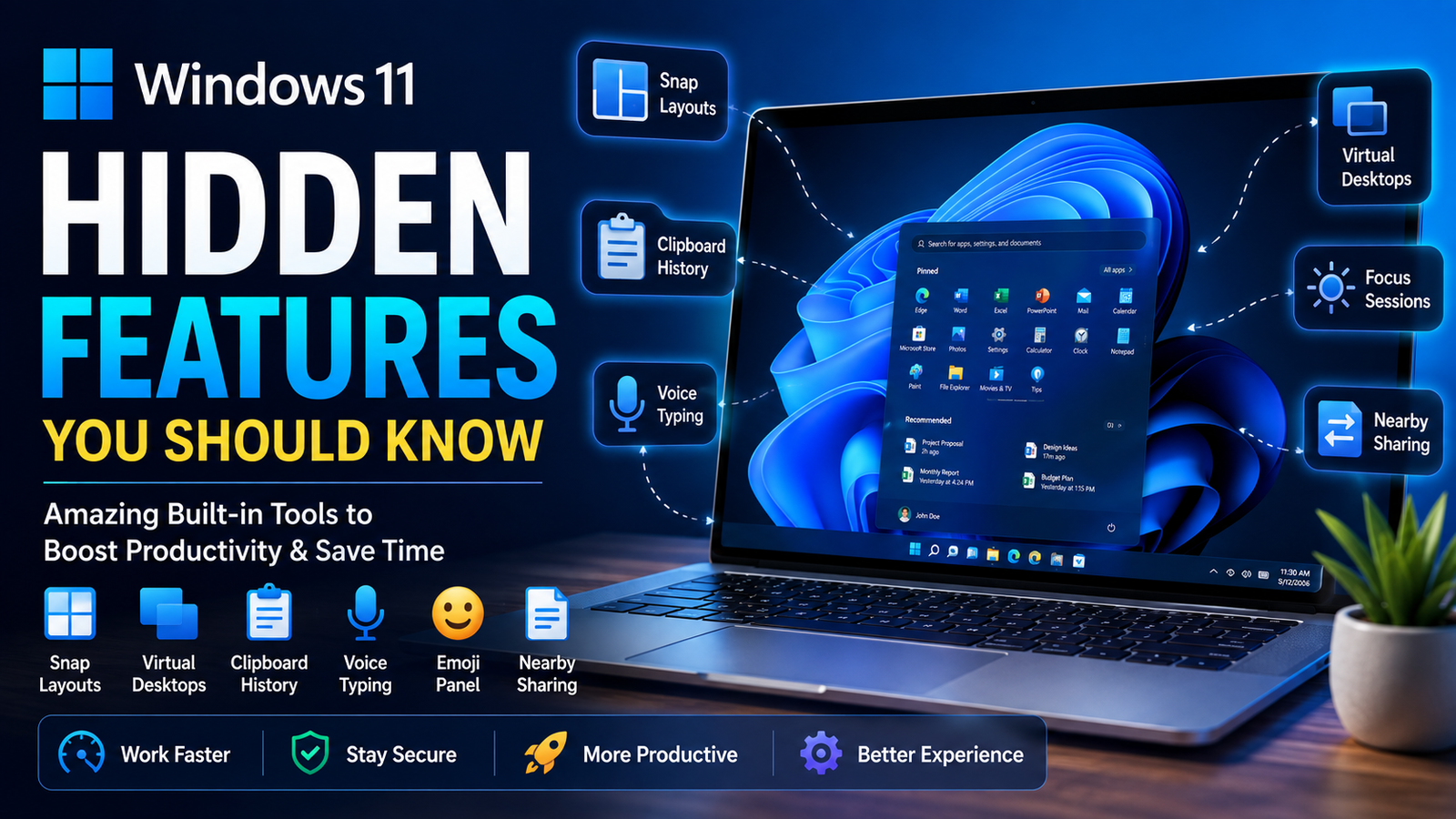
Windows 11 looks modern on the surface, but after using it for a while, I realized that many of its best features are hidden beneath the interface. Most people only use Windows for browsing the internet, watching videos, working on documents, or playing games. However, there are plenty of useful tools built into the operating system that can save time, improve productivity, and make everyday tasks much easier.
When I first switched to Windows 11, I thought it was simply a redesigned version of Windows 10. After exploring the settings and experimenting with different options, I discovered several hidden features that completely changed the way I use my computer. Many of these tools are already installed, but most users never notice them.
In this article, I will share some of my favorite hidden Windows 11 features that every user should know. Whether you are a student, office worker, freelancer, or casual PC user, these tips can help you get more from your computer.
Snap Layouts Make Multitasking Easier
One of my favorite Windows 11 features is Snap Layouts.
If you often work with multiple applications at the same time, this feature is incredibly useful. Instead of manually resizing windows, you can simply move your mouse over the maximize button and choose from several layout options.
Within seconds, your browser, Word document, spreadsheet, and messaging application can all be organized neatly on the screen.
This feature has helped me stay more productive because I no longer waste time arranging windows manually.
Snap Groups Help You Continue Your Work
Snap Groups work together with Snap Layouts.
Once you organize several applications into a layout, Windows remembers that arrangement.
If you switch to another task or minimize everything, you can quickly restore your entire workspace without reopening every application individually.
For people who frequently multitask, this feature saves a surprising amount of time.
Virtual Desktops Improve Organization
Virtual Desktops are another hidden productivity feature that many users ignore.
Instead of keeping everything on one desktop, Windows allows you to create multiple workspaces.
For example, I keep one desktop for writing, another for entertainment, and another for personal browsing.
This separation reduces distractions and makes it easier to focus on one task at a time.
Focus Sessions Reduce Distractions
Windows 11 includes a built in Focus feature that helps improve concentration.
When activated, unnecessary notifications are minimized, allowing you to work without constant interruptions.
You can also schedule focus sessions for specific periods during the day.
I find this especially useful when writing articles or completing important projects.
Even a short distraction can interrupt productivity, so this feature has become part of my daily routine.
Clipboard History Saves More Than One Copy
Most people know the traditional copy and paste shortcuts.
However, Windows 11 also stores multiple copied items using Clipboard History.
Instead of losing previously copied text every time you copy something new, Windows keeps a history that you can access whenever needed.
This feature is incredibly useful when working with documents, research, or spreadsheets.
Voice Typing Speeds Up Writing
Typing large amounts of text can become tiring.
Windows 11 includes Voice Typing, allowing users to dictate text instead of typing everything manually.
The speech recognition has improved significantly and works surprisingly well for many everyday tasks.
I occasionally use it when brainstorming ideas because speaking often feels faster than typing.
Emoji Panel Is More Useful Than You Think
The built in Emoji Panel offers much more than simple emojis.
It also includes symbols, kaomoji, GIF options in supported apps, and special characters that are useful when writing emails or creating social media posts.
Instead of searching online for symbols, everything is available within Windows.
It may seem like a small feature, but it saves time.
Nearby Sharing Makes File Transfers Simple
If you own multiple Windows devices, Nearby Sharing can make transferring files much easier.
Instead of using USB drives or cloud storage, compatible devices can exchange files directly over local wireless connections.
For students and office workers, this is a convenient way to move presentations, documents, or photos between computers.
Dynamic Refresh Rate
Many users with compatible laptops never realize this feature exists.
Dynamic Refresh Rate automatically adjusts the display refresh rate depending on what you are doing.
While scrolling through webpages or editing documents, Windows balances smooth performance with better battery life.
Gamers and users with high refresh rate displays especially benefit from this intelligent optimization.
Storage Sense Keeps Your Drive Clean
One hidden feature I recommend enabling immediately is Storage Sense.
Instead of manually deleting temporary files, Windows automatically removes unnecessary data, empty recycle bins, and clears outdated files according to your preferences.
This helps maintain free storage space without constant maintenance.
It is especially useful for laptops with limited storage capacity.
Live Captions
Windows 11 now includes Live Captions for supported audio.
Whether you are watching videos, attending meetings, or listening to online content, captions can appear automatically.
This feature improves accessibility while also helping users understand spoken content more clearly in noisy environments.
Quick Settings Panel
The Quick Settings panel provides fast access to commonly used options such as WiFi, Bluetooth, brightness, volume, airplane mode, accessibility features, and battery settings.
Instead of opening multiple menus, everything is available with a single click.
This small improvement makes everyday computer use more efficient.
Task Manager Improvements
The redesigned Task Manager includes a cleaner interface and improved performance monitoring.
Users can quickly identify applications consuming excessive CPU, memory, or disk resources.
When my computer feels slower than usual, Task Manager is usually the first place I check.
It often reveals background applications that are using unnecessary system resources.
Phone Link Integration
Phone Link creates a stronger connection between Windows PCs and supported smartphones.
Users can view messages, receive notifications, make calls, and transfer photos without constantly switching between devices.
For people who work on their computers throughout the day, this feature reduces unnecessary interruptions.
Screen Recording with Snipping Tool
Many users know the Snipping Tool for screenshots, but fewer realize it also supports screen recording on modern versions of Windows 11.
This makes it easier to create tutorials, record demonstrations, or capture software issues without installing additional applications.
For students, educators, and content creators, this built in tool is surprisingly useful.
Widgets for Personalized Information
Windows 11 widgets provide quick access to useful information such as weather, calendar events, news, stock updates, and sports scores.
Instead of opening multiple websites, important updates are available in one convenient location.
Users can customize widgets according to their interests.
Dark Mode and Personalization
Although many people use Dark Mode simply because it looks attractive, it can also reduce eye strain in low light environments.
Windows 11 offers extensive personalization options including themes, wallpapers, colors, lock screens, fonts, and accessibility settings.
Customizing the interface makes the operating system feel more personal while improving comfort during long working sessions.
Tips to Get the Most Out of Windows 11
Exploring the Settings application is one of the best ways to discover useful features.
Many valuable tools remain disabled until users activate them.
Keep Windows updated regularly because Microsoft frequently introduces new improvements and security enhancements.
Learn keyboard shortcuts whenever possible because they significantly increase productivity.
Finally, spend time experimenting with different settings instead of using only the default configuration.
You may discover features that perfectly match your workflow.
Final Thoughts
Windows 11 includes far more than a redesigned Start Menu and updated appearance. Hidden beneath its modern interface are powerful productivity features that many users never explore.
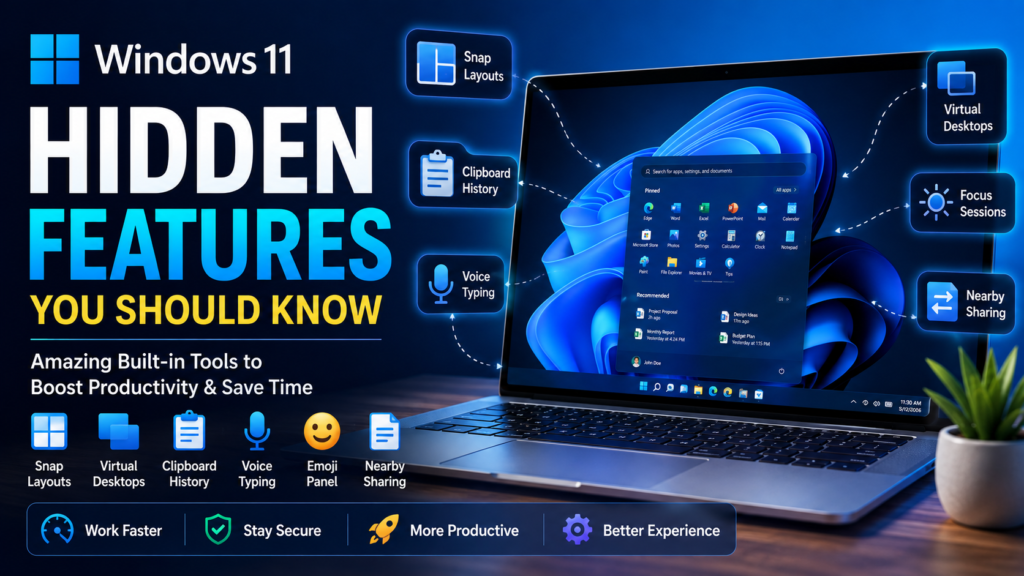
In my opinion, Snap Layouts, Snap Groups, Virtual Desktops, Focus Sessions, Clipboard History, Voice Typing, Storage Sense, Live Captions, Phone Link, Nearby Sharing, Dynamic Refresh Rate, and the improved Task Manager are among the most useful features available today.
The best part is that most of these tools are already built into Windows 11 and require no additional software. By taking a little time to explore these hidden features, you can work faster, stay more organized, and enjoy a smoother computing experience every day. Sometimes the biggest improvements come from tools that have been sitting on your computer all along without you even realizing it.