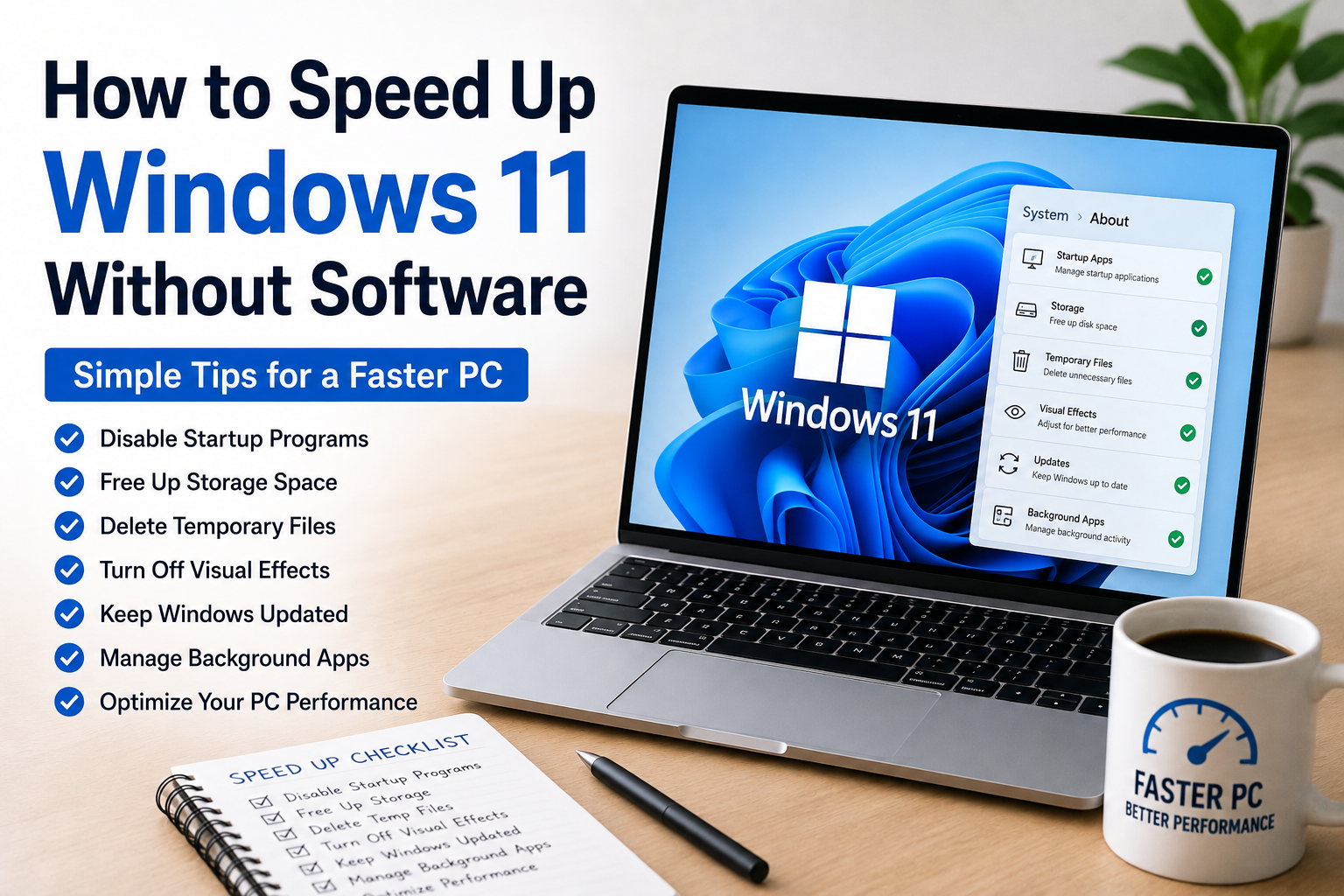
If your computer has started feeling slow, you are not alone. After using Windows 11 for a few months, many people notice that it takes longer to start, apps open slowly, and overall performance is not as smooth as it used to be. I experienced the same thing with my own PC. At first, I thought I needed to install expensive optimization software, but after doing some research and trying different methods, I realized that Windows 11 already includes everything needed to improve performance.
The best part is that you do not need to download any third party applications. With a few simple settings and regular maintenance, you can make your computer faster and more responsive.
In this article, I will share how to speed up Windows 11 without software using safe and effective methods that anyone can follow.
Why Windows 11 Becomes Slow
Before trying to improve performance, it is important to understand why Windows 11 slows down over time.
As you continue using your computer, more startup programs are added, storage becomes full, temporary files accumulate, background apps keep running, and Windows updates consume space. All of these factors gradually reduce system performance.
Fortunately, Windows 11 includes built in tools to solve most of these problems.
Restart Your Computer Regularly
Many people leave their computers running for days without restarting them.
I used to do the same until I noticed that a simple restart often made my computer much faster.
Restarting closes unnecessary background processes, clears temporary memory, and refreshes system resources.
If your PC feels sluggish, restarting should always be the first thing you try.
Disable Startup Programs
One of the biggest reasons Windows 11 starts slowly is because too many applications launch automatically.
Many programs add themselves to startup without asking.
To improve boot speed, open Task Manager and check the Startup Apps section.
Disable applications that you do not need immediately after turning on your computer.
After reducing startup apps, I noticed my PC reached the desktop much faster.
Remove Unnecessary Applications
Over time, many unused applications remain installed.
Some of them continue running background services even when you never open them.
Go through your installed applications and remove anything you no longer use.
Keeping only necessary software frees storage space and reduces background activity.
Free Up Storage Space
A nearly full drive can significantly reduce performance.
Windows needs free space for temporary files, updates, and virtual memory.
Delete unnecessary downloads, duplicate files, old videos, and large files you no longer need.
Moving personal files to an external drive or cloud storage can also help create more available space.
Use Storage Sense
Windows 11 includes a useful feature called Storage Sense.
It automatically removes temporary files, clears the recycle bin, and deletes unnecessary system files.
Once I enabled Storage Sense, I no longer had to remember cleaning temporary files manually.
This simple feature helps keep Windows running smoothly.
Delete Temporary Files
Temporary files build up every day.
Although each file is small, thousands of them can eventually consume several gigabytes of storage.
Open the Windows temporary files settings and remove unnecessary cached files.
This process is completely safe when performed through Windows settings.
Turn Off Visual Effects
Windows 11 includes attractive animations and transparency effects.
While they look nice, they also use system resources.
If your computer has limited RAM or an older processor, reducing visual effects can noticeably improve responsiveness.
Switching to performance focused settings often makes windows open faster and navigation feel smoother.
Keep Windows Updated
Some people delay Windows updates because they think updates slow down the computer.
In reality, updates often include performance improvements, security fixes, and bug corrections.
Keeping Windows 11 updated ensures your system runs as efficiently as possible.
Always allow important updates to install.
Update Device Drivers
Drivers help Windows communicate with hardware.
Outdated drivers sometimes reduce performance or create stability problems.
Use Windows Update or Device Manager to check for driver updates.
Updated graphics, storage, and chipset drivers often improve overall system performance.
Adjust Power Settings
Many laptops use balanced or power saving modes by default.
These modes reduce processor performance to save battery life.
If maximum performance is your priority, switching to a higher performance power mode can make Windows feel more responsive.
Desktop users especially benefit from this setting.
Close Background Applications
Many programs continue running even after you close their windows.
These background applications consume memory and processor resources.
Open Task Manager occasionally to see what is using your system resources.
Closing unnecessary applications frees memory for the programs you actually need.
Scan for Malware Using Windows Security
You do not need additional antivirus software because Windows Security already provides excellent protection.
Sometimes slow performance is caused by unwanted software or malware.
Running a full scan helps identify potential security threats affecting performance.
I perform regular scans to ensure my computer stays healthy.
Optimize Your Storage Drive
Windows automatically optimizes storage drives.
For traditional hard drives, optimization rearranges stored data for better performance.
For solid state drives, Windows performs maintenance designed specifically for SSD technology.
Leaving scheduled optimization enabled helps maintain good performance over time.
Reduce Browser Tabs
Modern web browsers consume significant amounts of memory.
Opening dozens of tabs at once can slow even powerful computers.
I now close tabs I no longer need and bookmark important pages instead.
This simple habit noticeably reduces memory usage.
Keep Your Desktop Organized
Many users save hundreds of files directly on the desktop.
Although convenient, a cluttered desktop can slightly increase loading times.
Organizing files into folders creates a cleaner workspace and makes finding documents much easier.
Disable Background Apps
Some applications continue performing updates, notifications, and synchronization even when you are not actively using them.
Limiting unnecessary background activity allows Windows to dedicate more resources to your active work.
You can control these permissions through Windows settings.
Empty the Recycle Bin
Deleted files remain stored inside the recycle bin until permanently removed.
If the recycle bin contains many large files, it occupies valuable storage space.
Emptying it regularly helps recover additional free space.
Remove Browser Extensions
Too many browser extensions slow down internet browsing.
Review your installed extensions and remove those you no longer use.
Keeping only essential extensions improves browser speed and stability.
Check Available RAM
If your computer frequently slows down while multitasking, memory usage may be the reason.
Task Manager shows how much RAM is currently in use.
Closing unnecessary applications helps reduce memory consumption.
Understanding which programs use the most memory helps identify performance problems.
Manage Windows Notifications
Constant notifications consume small amounts of system resources and interrupt concentration.
Disabling unnecessary notifications creates a smoother experience while improving productivity.
Only keep notifications enabled for applications that truly matter.
Keep Your Downloads Folder Clean
The Downloads folder often becomes one of the largest folders on a computer.
Old installation files, duplicate documents, and outdated downloads waste valuable storage.
Review this folder regularly and remove anything you no longer need.
Avoid Running Too Many Programs Together
Sometimes Windows slows down simply because too many applications are open simultaneously.
Running video editing software, web browsers, games, music players, and office programs together can overload system resources.
Closing unused applications immediately improves responsiveness.
Check Windows Performance Recommendations
Windows 11 includes built in recommendations for improving performance.
These suggestions may include disabling startup apps, adjusting storage settings, or enabling automatic cleanup.
Reviewing these recommendations occasionally helps keep the system optimized.
Develop Good Computer Habits
Keeping Windows fast is not something you do only once.
It becomes much easier when good habits are followed consistently.
Restart your computer regularly.
Keep storage organized.
Install updates.
Remove unused applications.
Avoid downloading unnecessary files.
Perform occasional maintenance.
These simple habits prevent most performance issues before they become serious.
Common Mistakes That Slow Down Windows
Many users unknowingly reduce their computer’s performance.
One common mistake is filling the storage drive almost completely.
Another is leaving dozens of startup applications enabled.
Ignoring Windows updates is another frequent problem.
Some users also install unnecessary optimization software that actually consumes additional system resources instead of improving performance.
Windows 11 already includes most of the maintenance tools you need.
Is Third Party Optimization Software Necessary?
In my experience, most users do not need additional optimization software.
Many applications promise dramatic speed improvements, but Windows 11 already provides built in features for cleaning storage, managing startup programs, optimizing drives, checking security, and maintaining system health.
Learning how to use these built in tools is often more effective than installing extra software.
It also reduces unnecessary background processes and keeps your computer cleaner.
Final Thoughts
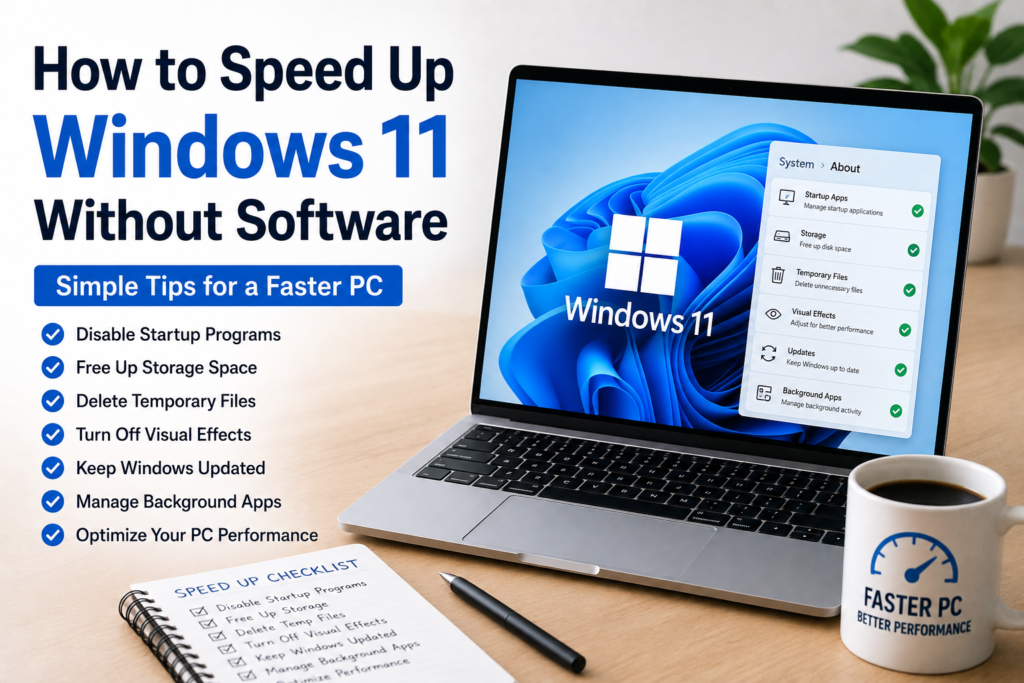
Learning how to speed up Windows 11 without software is easier than many people think. You do not need expensive optimization programs or advanced technical knowledge to improve your computer’s performance. By disabling unnecessary startup applications, freeing storage space, deleting temporary files, enabling Storage Sense, keeping Windows updated, adjusting visual effects, managing background apps, and following good maintenance habits, you can make your PC feel much faster.
I have personally found that these simple built in methods make a noticeable difference in everyday use. Windows starts more quickly, applications open faster, multitasking becomes smoother, and the entire system feels more responsive. If you follow these tips consistently, your Windows 11 computer can continue performing efficiently for a long time without relying on third party software.