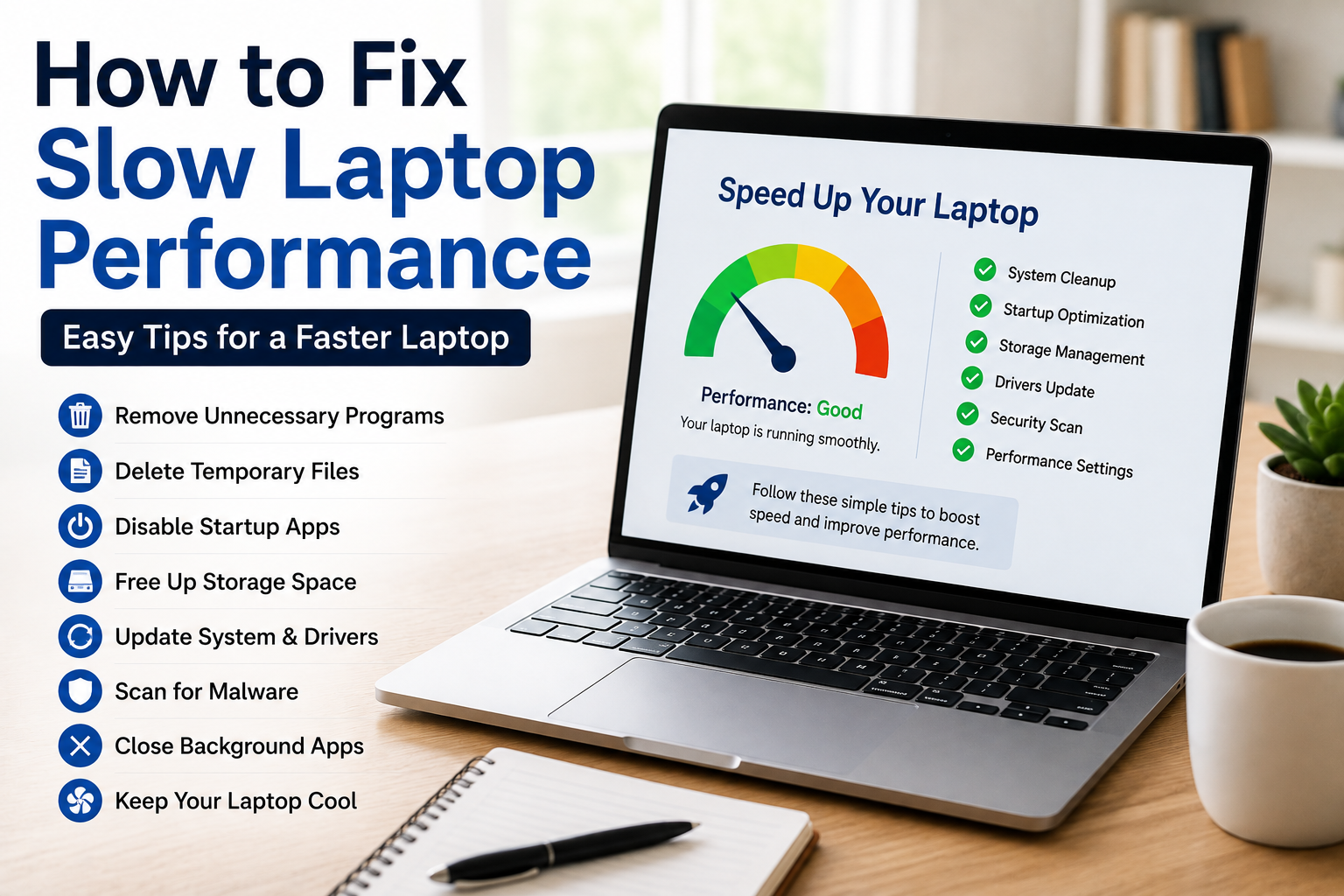
A slow laptop can be one of the most frustrating problems, especially when you need to finish important work or attend an online meeting. I have experienced this myself. There was a time when my laptop took several minutes just to start, applications opened slowly, and even simple tasks felt difficult. At first, I thought I needed to buy a new laptop, but after making a few changes and maintaining it properly, I noticed a significant improvement in performance.
The good news is that you do not always need expensive upgrades or professional repairs. In many cases, you can fix slow laptop performance by using simple methods that are already available in your operating system.
In this article, I will share practical tips that helped improve my laptop’s speed and can help you do the same.
Why Does a Laptop Become Slow?
Before fixing the problem, it is important to understand why laptops slow down over time.
As we continue using our laptops, we install more applications, save thousands of files, download updates, and leave many programs running in the background. These activities gradually consume storage space, memory, and processing power.
Sometimes the issue is not with the hardware at all. It is simply the result of poor maintenance or unnecessary background activity.
Understanding the cause makes it much easier to solve the problem.
Restart Your Laptop Regularly
One of the easiest solutions is also one of the most effective.
Many people close the laptop lid every day without restarting the system.
Restarting clears temporary memory, closes background processes, and refreshes system resources.
Whenever my laptop starts feeling slow, restarting it is always the first thing I do.
It only takes a minute but often improves performance immediately.
Remove Unnecessary Startup Programs
Every time you turn on your laptop, several applications may start automatically.
Many of these programs are not necessary and only increase boot time.
Open the startup settings and disable applications that you do not need immediately after startup.
After reducing startup programs, I noticed that my laptop reached the desktop much faster.
Delete Unused Applications
Over time, we install software that we eventually stop using.
These applications continue occupying storage space and sometimes run background services without us realizing it.
Go through your installed applications and remove anything you no longer need.
Keeping your laptop free from unnecessary software improves both storage and overall performance.
Free Up Storage Space
A nearly full storage drive can slow down your laptop.
The operating system needs available space for temporary files, updates, and virtual memory.
Delete duplicate files, old videos, unnecessary downloads, and unused documents.
Moving large files to cloud storage or an external drive also helps create additional space.
Delete Temporary Files
Temporary files are created whenever you browse the internet, install software, or use different applications.
Although each file is small, thousands of temporary files can eventually occupy several gigabytes.
Use your operating system’s built in cleanup tools to remove unnecessary temporary files safely.
This simple maintenance task improves storage efficiency.
Enable Storage Cleanup Features
Modern operating systems include automatic storage management features.
These tools remove temporary files, clear old system data, and empty the recycle bin automatically.
Once I enabled automatic cleanup, my laptop stayed cleaner without requiring frequent manual maintenance.
Close Background Applications
Many applications continue running even after their windows are closed.
These background programs consume memory and processor resources.
Open Task Manager occasionally and check which applications are using the most system resources.
Closing unnecessary applications immediately frees valuable memory.
Reduce Browser Tabs
Web browsers consume a surprising amount of memory.
Having dozens of tabs open at the same time can slow down even powerful laptops.
I now keep only the tabs I actually need and bookmark the rest for later.
This simple habit noticeably improves performance.
Update Your Operating System
Many users ignore system updates because they think updates slow down the computer.
In reality, updates usually improve performance, fix bugs, and enhance security.
Keeping your operating system updated ensures that your laptop runs as efficiently as possible.
Update Device Drivers
Drivers allow your operating system to communicate properly with your hardware.
Outdated drivers can reduce performance or create compatibility issues.
Check for driver updates regularly using your system settings.
Updated graphics and storage drivers often provide noticeable improvements.
Scan for Malware
Sometimes slow performance is caused by malware or unwanted software.
Fortunately, most operating systems include built in security tools that can perform full system scans.
Running regular scans helps detect and remove harmful software before it affects performance.
I always keep security protection enabled for this reason.
Adjust Visual Effects
Modern operating systems include attractive animations, transparency effects, and visual enhancements.
Although they improve appearance, they also consume system resources.
If your laptop has limited hardware, reducing visual effects can make the system feel much more responsive.
Performance becomes more important than appearance on older laptops.
Keep Your Desktop Organized
Many people save hundreds of files directly on the desktop.
A cluttered desktop not only looks messy but can also affect loading times.
Creating folders and organizing files makes the system easier to use while keeping everything neat.
Empty the Recycle Bin
Deleted files continue occupying storage until the recycle bin is emptied.
If large files remain there for months, they continue consuming valuable storage space.
Emptying the recycle bin regularly helps recover additional space.
Manage Power Settings
Laptops often use power saving modes to increase battery life.
While useful, these settings may reduce processor performance.
If you are working while connected to a charger, switching to a higher performance power mode can make your laptop feel much faster.
Check Memory Usage
If your laptop becomes slow during multitasking, memory usage may be the problem.
Task Manager shows how much RAM is currently being used.
Closing unnecessary applications reduces memory usage and improves system responsiveness.
Understanding which applications consume the most memory helps identify performance issues.
Remove Unnecessary Browser Extensions
Browser extensions can improve productivity, but installing too many of them slows browsing performance.
Review your installed extensions and remove those you no longer use.
Keeping only essential extensions makes the browser faster and more stable.
Keep the Downloads Folder Clean
The Downloads folder often becomes one of the largest folders on a laptop.
Old installation files, duplicate downloads, and outdated documents waste storage space.
Review this folder regularly and remove files you no longer need.
Keep Your Laptop Cool
Heat can significantly reduce laptop performance.
When the system becomes too hot, the processor automatically slows down to protect itself.
Always place your laptop on a flat surface where air can circulate properly.
Avoid blocking cooling vents with blankets, pillows, or soft furniture.
Cleaning dust from air vents also improves airflow.
Avoid Running Too Many Programs Together
Running multiple heavy applications at the same time places extra pressure on the processor and memory.
Video editing software, games, browsers, and office applications all compete for system resources.
Closing programs you are not actively using helps maintain smooth performance.
Restart Heavy Applications Occasionally
Some applications gradually consume more memory the longer they remain open.
Restarting them occasionally helps release unused memory and restore better performance.
This is especially useful for web browsers and creative software.
Develop Good Maintenance Habits
Fixing slow laptop performance is not something you do only once.
Regular maintenance prevents future slowdowns.
Restart your laptop regularly.
Delete unnecessary files.
Install updates.
Keep storage organized.
Remove unused applications.
Run occasional security scans.
These simple habits help your laptop remain fast over time.
Common Mistakes That Slow Down Laptops
Many users unintentionally reduce their laptop’s performance.
Installing unnecessary software, filling storage almost completely, ignoring updates, leaving too many browser tabs open, and running dozens of startup applications all contribute to slower performance.
Avoiding these habits keeps your system running more efficiently.
Do You Need to Upgrade Your Hardware?
Sometimes software optimization is enough.
However, if your laptop is several years old and still uses an older hard drive or has very little memory, upgrading certain hardware components may provide significant improvements.
Adding more RAM or replacing a traditional hard drive with a solid state drive often delivers the biggest performance boost.
Before spending money on a new laptop, consider whether a simple upgrade might solve the problem.
Is Third Party Optimization Software Necessary?
Many programs promise to make your laptop dramatically faster.
In my experience, most people do not need them.
Modern operating systems already include tools for storage cleanup, security scanning, startup management, and performance optimization.
Learning how to use these built in features is usually enough to keep your laptop running smoothly.
Avoid installing unnecessary optimization software because it can sometimes consume additional system resources instead of improving performance.
Final Thoughts
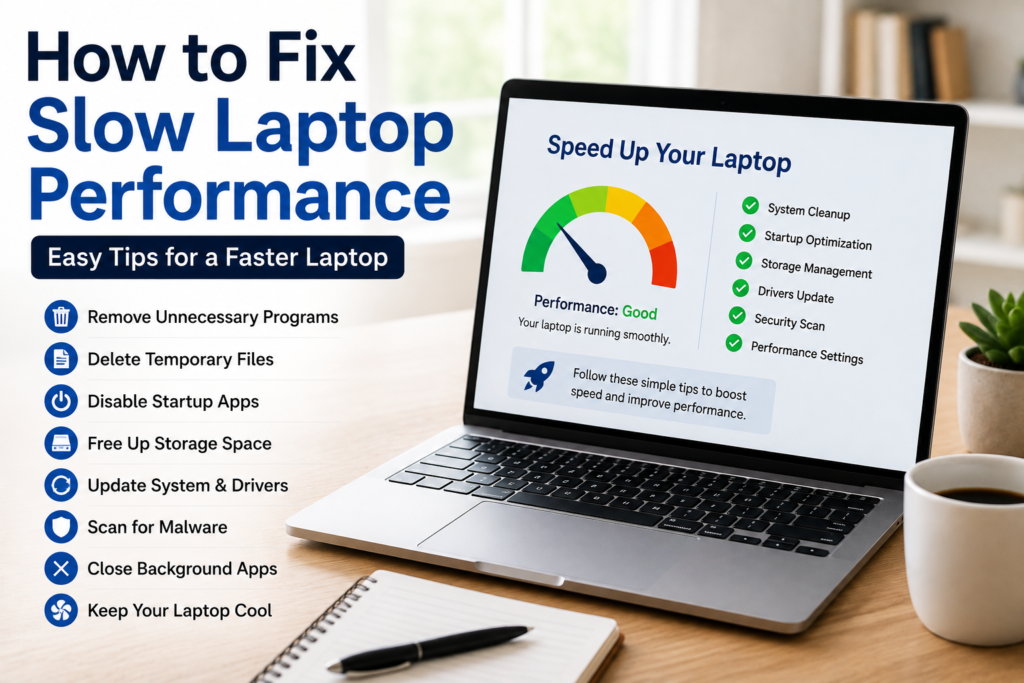
Learning how to fix slow laptop performance does not require advanced technical knowledge. Most slow laptops can be improved by following simple maintenance practices such as restarting regularly, removing unnecessary startup programs, deleting temporary files, freeing storage space, updating the operating system, managing background applications, and keeping the system organized.
I have personally used these methods to improve the speed of my own laptop, and the results were noticeable. The system became more responsive, applications opened faster, multitasking improved, and everyday work became much more enjoyable. If you consistently follow these simple tips, your laptop can continue performing efficiently for years without requiring expensive repairs or unnecessary software.