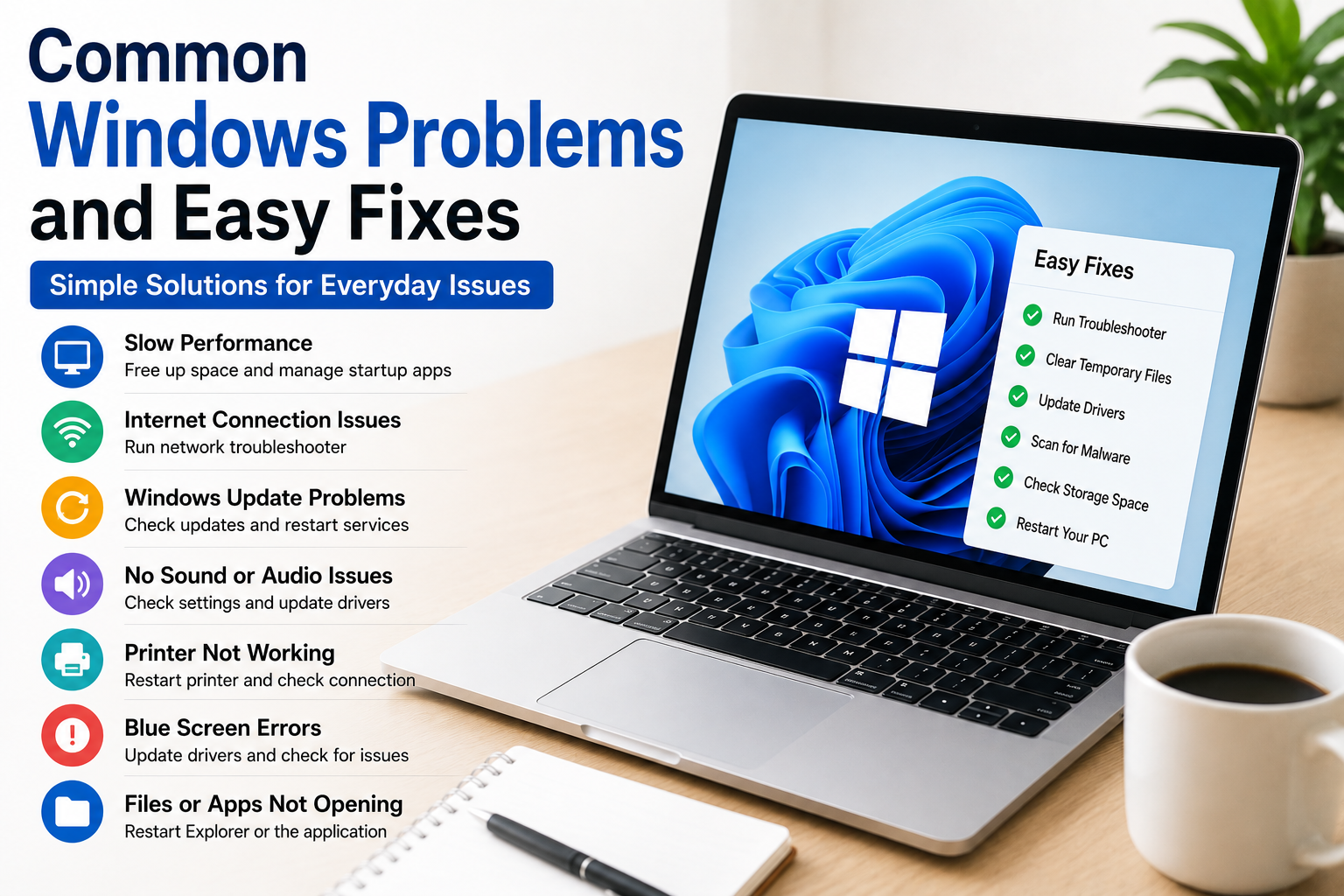
Windows is one of the most popular operating systems in the world, and millions of people use it every day for work, study, gaming, and entertainment. I have been using Windows for many years, and during that time I have faced many different problems. Sometimes the computer becomes slow, sometimes it refuses to connect to the internet, and other times an update causes unexpected issues. At first, these problems seemed difficult to solve, but after learning a few basic troubleshooting methods, I realized that many Windows issues have simple solutions.
The good news is that you do not always need to call a technician or spend money on repair software. Most common Windows problems can be fixed using the tools already built into the operating system.
In this article, I will share the most common Windows problems and easy fixes that have helped me keep my computer running smoothly.
Slow Computer Performance
One of the most common complaints is a slow computer.
Over time, Windows may take longer to start, applications may open slowly, and multitasking becomes difficult.
This usually happens because too many startup programs are running, storage space is nearly full, or unnecessary background applications are consuming system resources.
The easiest solution is to restart your computer, remove unnecessary startup applications, delete temporary files, and uninstall software you no longer use.
Keeping enough free storage space also helps improve performance.
Windows Takes Too Long to Start
A slow startup can waste valuable time every day.
Many applications automatically launch when Windows starts.
Although some startup programs are necessary, many are not.
Open the startup settings and disable programs that you do not need immediately after turning on your computer.
Reducing startup applications can noticeably decrease boot time.
Internet Connection Problems
Few things are more frustrating than losing your internet connection.
Sometimes the problem is with Windows, while other times it is caused by the router or internet provider.
The first thing I do is restart both the computer and the router.
If that does not work, I check whether airplane mode is enabled and confirm that WiFi is connected to the correct network.
Running the built in network troubleshooter can also identify common connection problems.
Windows Update Issues
Windows updates are important because they improve security and system stability.
However, updates occasionally fail or become stuck.
If this happens, restarting the computer often solves the issue.
Checking available storage space is also important because updates require free disk space.
Running the Windows Update troubleshooter can fix many update related problems automatically.
Computer Freezes Frequently
A frozen screen can interrupt your work and become very frustrating.
This usually happens because an application stops responding or system resources become overloaded.
Pressing the keyboard shortcut to open Task Manager allows you to close the unresponsive program.
If freezing happens regularly, check whether too many applications are running at the same time.
Restarting the computer also refreshes memory and often solves temporary freezing issues.
Blue Screen Errors
The blue screen is one of the most well known Windows problems.
Although it looks serious, it does not always mean permanent hardware damage.
Blue screen errors may result from driver problems, software conflicts, faulty updates, or hardware issues.
Restarting the computer is the first step.
If the problem continues, updating drivers and checking recent software installations often helps identify the cause.
Low Storage Space
Running out of storage affects both performance and system updates.
Old downloads, duplicate files, temporary files, and unused applications often consume a large amount of storage.
Delete unnecessary files and empty the recycle bin regularly.
Using the built in storage cleanup tools also helps recover valuable space.
Programs Not Responding
Sometimes an application suddenly stops working.
Instead of repeatedly clicking the program window, open Task Manager and close the frozen application.
After restarting the application, it usually works normally again.
If the same application continues crashing, checking for updates or reinstalling it may solve the problem.
Audio Problems
There are times when Windows suddenly stops playing sound.
Before assuming something is broken, check whether the volume is muted.
Next, confirm that the correct speakers or headphones are selected as the audio output device.
Restarting the computer and updating audio drivers often resolves sound problems.
Printer Not Working
Printers occasionally refuse to print even when everything appears connected correctly.
I usually begin by checking the cable or wireless connection.
Restarting both the printer and the computer often restores communication.
If the issue continues, removing and reconnecting the printer usually fixes the problem.
Keyboard or Mouse Stops Working
If the keyboard or mouse suddenly stops responding, disconnect and reconnect the device if possible.
Wireless devices should also have fresh batteries.
Restarting Windows often restores normal operation.
Updating device drivers may also help if the issue continues.
High Memory Usage
When memory usage becomes too high, Windows starts slowing down.
Task Manager shows which applications consume the most RAM.
Closing unnecessary applications immediately improves performance.
Reducing the number of browser tabs also helps lower memory usage.
High CPU Usage
Sometimes the processor remains busy even when you are not actively using the computer.
Task Manager allows you to identify which applications are consuming the processor.
Closing unnecessary applications usually solves the problem.
Keeping Windows updated also helps prevent certain software related performance issues.
Laptop Overheating
Heat can reduce system performance because the processor automatically slows down to protect itself.
Always use your laptop on a hard, flat surface where air can circulate properly.
Cleaning dust from cooling vents also improves airflow.
Keeping the laptop cool allows it to perform more efficiently.
Browser Running Slowly
Many people assume Windows is slow when the real problem is the web browser.
Having dozens of open tabs and too many browser extensions can significantly reduce browsing speed.
Closing unused tabs, removing unnecessary extensions, and clearing browser cache often improve performance.
Windows Search Not Working
Sometimes the search feature fails to find files or applications.
Restarting Windows Search services or rebuilding the search index usually restores normal functionality.
Keeping Windows updated also prevents many search related issues.
File Explorer Stops Responding
File Explorer occasionally freezes while opening folders.
Restarting File Explorer through Task Manager often fixes the problem without restarting the entire computer.
This simple solution saves time and restores normal operation quickly.
External USB Devices Not Detected
Flash drives, external hard drives, and USB accessories sometimes fail to appear.
Trying a different USB port is often enough to solve the issue.
Restarting the computer and reconnecting the device also helps.
Checking Device Manager for hardware issues can provide additional information.
Battery Draining Quickly
Laptop batteries naturally lose capacity over time, but background applications can also increase battery usage.
Reducing screen brightness, closing unnecessary applications, and enabling battery saving mode help extend battery life.
Keeping software updated also improves battery efficiency.
Windows Running Slowly After Updates
Occasionally Windows feels slower immediately after installing updates.
This is often temporary because Windows continues optimizing files in the background.
Allowing the computer to finish background tasks and restarting it once usually restores normal performance.
Missing Files After an Update
Sometimes users worry that updates have deleted their files.
Before panicking, check the Documents, Downloads, Desktop, and Recycle Bin folders carefully.
Using Windows search can also help locate misplaced files.
In many cases, the files are still available but stored in a different location.
Built In Troubleshooters
One feature many users overlook is the collection of built in troubleshooters.
Windows includes automatic tools for fixing internet connections, audio problems, printers, updates, Bluetooth devices, and many other common issues.
Whenever I face a problem, I often run the appropriate troubleshooter first because it can automatically detect and repair simple problems.
Good Habits That Prevent Windows Problems
Preventing problems is always easier than fixing them.
Restart your computer regularly.
Install Windows updates.
Keep enough free storage space available.
Delete unnecessary files.
Avoid installing software you do not trust.
Perform regular security scans.
Keep drivers updated.
These habits significantly reduce the chances of experiencing major Windows issues.
When Should You Seek Professional Help?
Most everyday Windows problems have simple solutions, but some situations require professional assistance.
If your computer repeatedly shows blue screen errors, refuses to start, makes unusual hardware noises, or continues crashing after trying multiple solutions, professional diagnosis may be necessary.
Hardware failures such as damaged storage drives or faulty memory modules require proper repair or replacement.
Final Thoughts
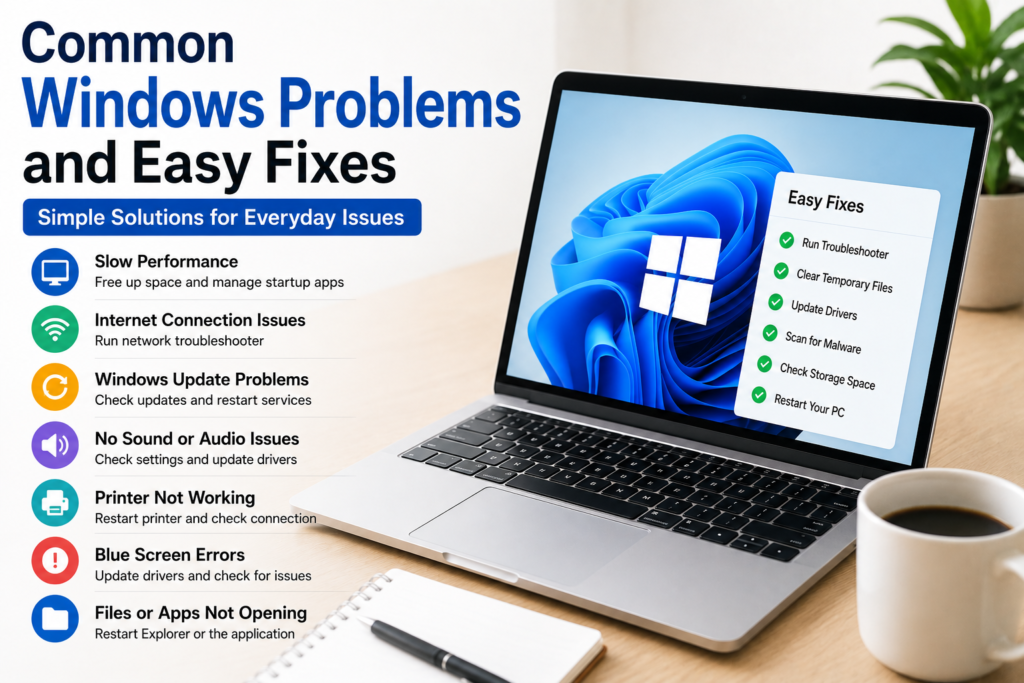
Learning about common Windows problems and easy fixes can save both time and money. Many issues that seem serious are actually simple to solve with basic troubleshooting steps. Restarting the computer, freeing storage space, updating Windows, managing startup applications, checking internet settings, closing background programs, and using the built in troubleshooting tools can resolve many everyday problems without requiring expensive software or technical support.
I have personally used these methods countless times, and they have helped keep my Windows computer running smoothly. By following good maintenance habits and learning a few basic troubleshooting techniques, you can solve most common Windows problems with confidence and enjoy a faster, more reliable computing experience every day.