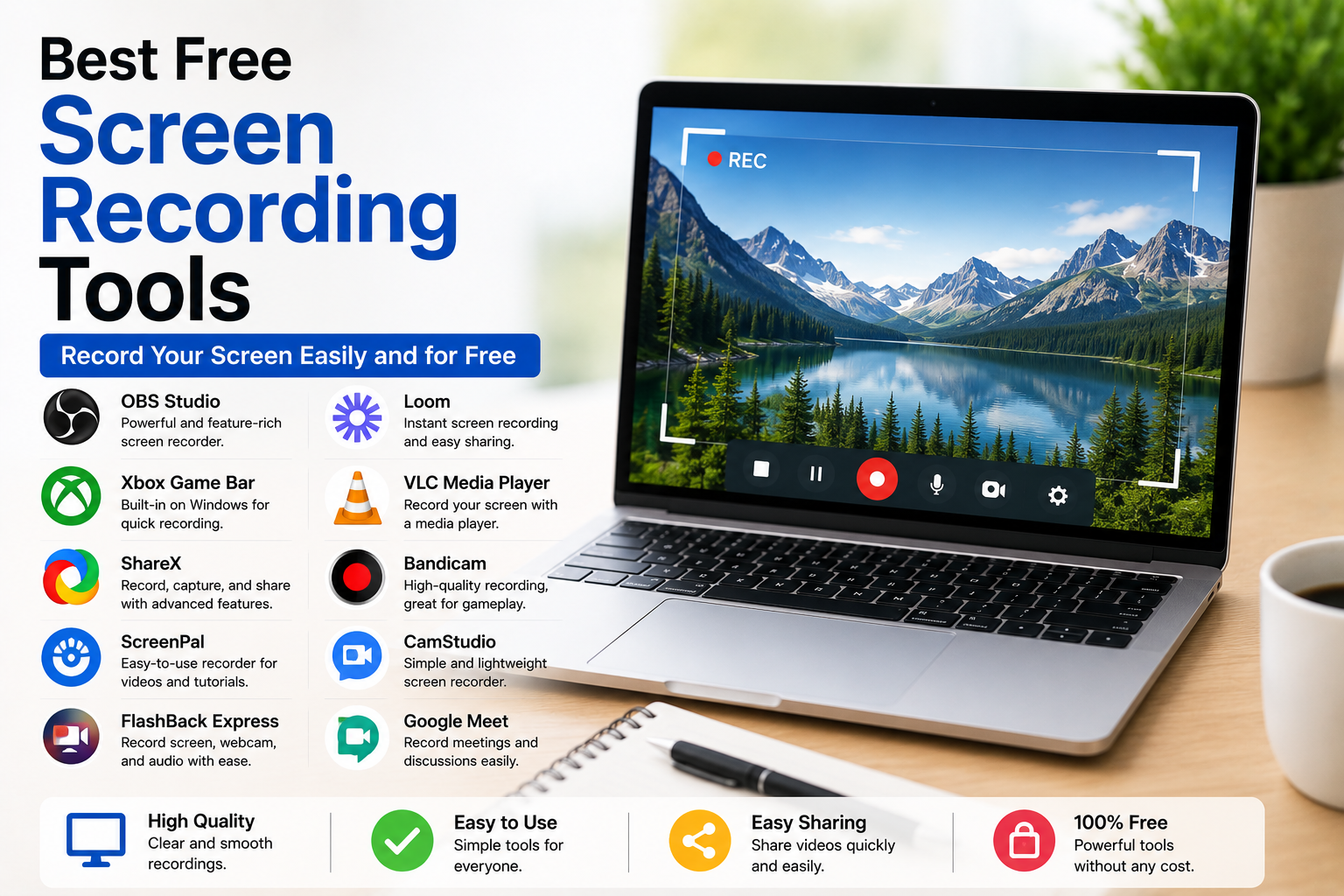
Screen recording has become an important part of everyday digital life. Whether I need to create a tutorial, record an online class, capture gameplay, make a presentation, or explain something to a client, a good screen recorder saves both time and effort. When I first started looking for screen recording software, I assumed I would need to buy an expensive program. After trying several options, I realized that many free screen recording tools offer excellent features and produce high quality videos without costing anything.
The challenge is choosing the right one because there are many free options available. Some are designed for beginners, while others include advanced features for professionals. The good news is that you can easily find a free screen recorder that matches your needs.
In this article, I will share the best free screen recording tools that I have found useful and explain why they are worth trying.
Why You Need a Screen Recording Tool
Screen recording software allows you to capture everything happening on your computer or mobile screen.
I use it for creating tutorials, recording software demonstrations, online meetings, gaming videos, educational lessons, troubleshooting guides, and presentations.
Instead of explaining something through long messages, I can simply record my screen and show the exact process.
This saves time for both me and the person watching.
OBS Studio
OBS Studio is one of the most popular free screen recording tools available today.
Despite being completely free, it offers professional level features.
I like OBS because it records high quality videos without watermarks or recording time limits.
It also supports live streaming, making it ideal for content creators.
Although beginners may need a little time to learn the interface, the flexibility makes it worth the effort.
Best Features
High quality recording
No watermark
Unlimited recording
Live streaming support
Multiple recording sources
Professional controls
Best For
YouTubers
Gamers
Teachers
Professional creators
Xbox Game Bar
If you use Windows, Xbox Game Bar is already installed.
Many people do not realize they already have a built in screen recorder.
I often use it for quick recordings because it starts instantly without installing additional software.
It works especially well for recording games and applications.
Best Features
Built into Windows
Simple interface
Quick recording
Game recording
Performance monitoring
Best For
Windows users
Gamers
Beginners
ShareX
ShareX is another excellent free tool.
It combines screen recording, screenshot capture, file sharing, and productivity features in one application.
I especially like its screenshot options because they save time while creating tutorials.
The software also supports custom workflows for advanced users.
Best Features
Screen recording
Screenshot tools
File sharing
Workflow automation
Custom shortcuts
Best For
Tutorial creators
Developers
Students
Office workers
ScreenPal
ScreenPal is a beginner friendly screen recorder that works well for educational and business use.
The interface is simple, making it easy for anyone to start recording.
I have found it useful for creating quick instructional videos.
It also includes basic editing features that help improve recorded videos.
Best Features
Easy interface
Basic editing
Webcam recording
Audio recording
Quick sharing
Best For
Teachers
Students
Business presentations
FlashBack Express
FlashBack Express offers impressive recording quality without requiring payment.
It records the screen, webcam, and microphone simultaneously.
The software produces clean videos suitable for tutorials and online lessons.
One thing I appreciate is the absence of recording time limits.
Best Features
Screen recording
Webcam support
Audio recording
No time limits
Simple interface
Best For
Online educators
Content creators
Beginners
Loom
Loom has become very popular for workplace communication.
Instead of typing long emails, I often record a short video explaining my ideas.
The sharing process is extremely fast because videos can be uploaded instantly.
This makes collaboration much easier.
Best Features
Instant sharing
Webcam recording
Screen recording
Cloud storage
Easy collaboration
Best For
Remote workers
Teams
Business communication
VLC Media Player
Most people know VLC as a media player, but it also includes screen recording functionality.
Although it is not as advanced as dedicated recording software, it works surprisingly well for simple recordings.
If VLC is already installed on your computer, there is no need to install another application for basic recording tasks.
Best Features
Free
Lightweight
Built in recording
Media playback
Easy installation
Best For
Occasional recordings
Simple tutorials
Basic users
Bandicam Free
Bandicam offers a free version with useful recording capabilities.
It performs particularly well when recording games or high quality desktop videos.
The interface is easy to understand, making it suitable for beginners.
The paid version removes certain limitations, but the free version remains useful for many users.
Best Features
Game recording
Desktop recording
High quality output
Simple interface
Hardware acceleration
Best For
Gamers
Students
Tutorial creators
CamStudio
CamStudio has been available for many years.
Although its interface looks older than newer alternatives, it remains a reliable free screen recorder.
It is lightweight and performs well on older computers.
For users who simply need basic recording, it continues to be a good choice.
Best Features
Free
Simple recording
Small installation
Easy controls
Basic functionality
Best For
Older computers
Simple recordings
Beginners
Google Meet Recording
Many online meeting platforms now include recording options.
If your organization supports recording, Google Meet can capture meetings without additional software.
This becomes useful for reviewing important discussions later.
Always remember to obtain permission before recording meetings.
How to Choose the Right Screen Recorder
The best screen recording tool depends on your needs.
If you want professional quality recordings and streaming, OBS Studio is difficult to beat.
If you simply need quick Windows recordings, Xbox Game Bar is very convenient.
For business communication, Loom is an excellent choice.
ShareX works well for tutorials, while ScreenPal and FlashBack Express are ideal for education.
Choosing the right tool becomes much easier once you understand your recording goals.
Features to Look For
Not every screen recorder offers the same capabilities.
When choosing software, I usually look for high quality recording, microphone support, webcam recording, easy controls, editing tools, unlimited recording, and no watermark.
These features make the recording process smoother and produce better results.
Tips for Better Screen Recordings
Good recordings require more than good software.
Before recording, close unnecessary applications to reduce distractions.
Turn off notifications so they do not appear in the video.
Use a good microphone if recording your voice.
Plan what you want to say before pressing the record button.
Keeping recordings organized also saves editing time later.
Common Mistakes Beginners Make
Many beginners start recording without testing their microphone.
Others forget to close personal notifications before recording.
Some record at unnecessarily high resolutions, creating huge video files.
Another common mistake is speaking without preparation, resulting in long pauses and repeated explanations.
A little planning improves recording quality significantly.
Are Free Screen Recorders Good Enough?
In my experience, absolutely.
Most users do not need expensive recording software.
Free applications like OBS Studio, ShareX, Xbox Game Bar, Loom, and FlashBack Express provide more than enough features for tutorials, education, gaming, presentations, and business communication.
Unless you require highly specialized editing tools, free software is usually sufficient.
Why Screen Recording Is Becoming More Popular
Video communication continues growing every year.
Instead of writing long instructions, people increasingly create short videos.
Teachers record lessons.
Businesses create training videos.
Gamers share gameplay.
Content creators produce tutorials.
Students submit presentations.
Screen recording has become an essential skill across many industries.
Final Thoughts
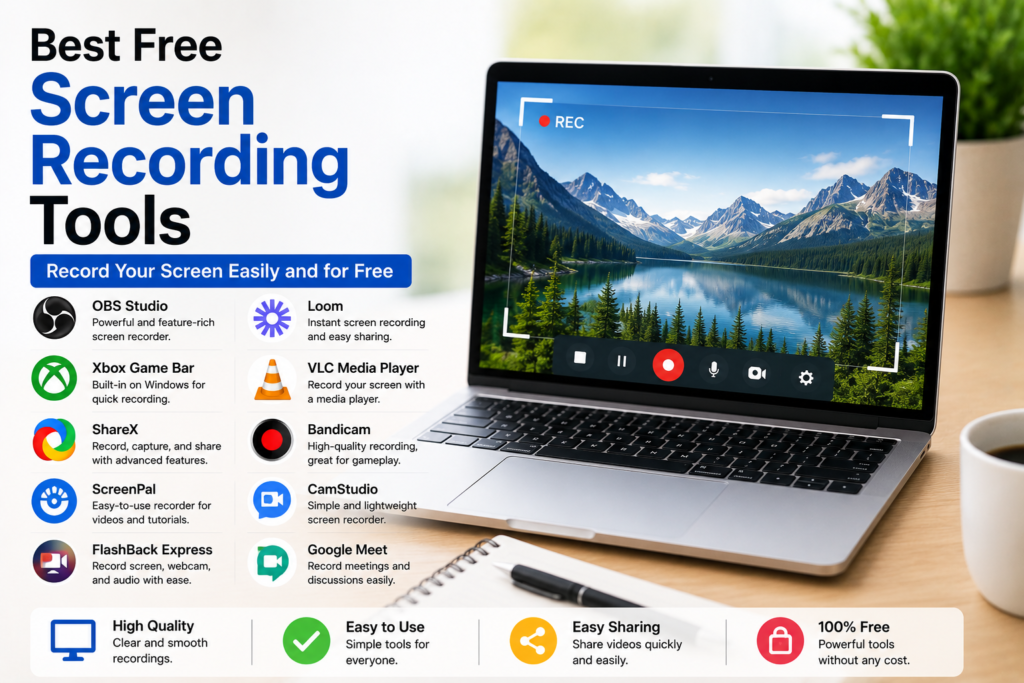
Choosing the best free screen recording tools depends on the type of content you create, but the good news is that there are many excellent free options available. OBS Studio offers professional quality recording and live streaming, Xbox Game Bar provides a convenient built in solution for Windows users, ShareX combines screen recording with powerful screenshot tools, and Loom makes business communication incredibly simple. ScreenPal, FlashBack Express, VLC Media Player, Bandicam Free, and CamStudio also provide valuable features for different users.
I personally believe that free screen recording software has improved tremendously over the years. You no longer need expensive applications to create professional looking videos. By selecting the right tool, planning your recordings carefully, and practicing regularly, you can create clear, informative, and engaging screen recordings for work, education, or personal projects without spending any money.